

low priority instead of the reference answer’s normal. It passed Support ticket contains JSON because that rule checks JSON content, not classification accuracy.
Before you start
You need a completed output from a dataset evaluation or a production request. Prepare two people with review access to complete the independent reviews.
An owner or admin assigns existing organization members under Review settings → Reviewer access. These access changes save immediately. Review-only access limits a member’s Prompt Studio access to Review and Review settings. It does not grant access to Results or Analytics.
Automated scores and other decisions stay hidden in the review panel until you submit, or until the case needs adjudication or is resolved. This applies to owners and admins too. Make each decision from the ticket, reference answer, and generated output before discussing it with the other reviewer.
Watch a first review
This 34-second edited walkthrough shows the saved password-reset output, the claim, a complete decision, and Needs second review after submission. It uses actual app captures and stops after the first decision.Video transcript
Video transcript
- 0:00–0:07 — Inspect the saved output. The JSON check passed, but the ticket needs normal priority.
- 0:07–0:14 — Claim the case. Read the input, expected answer, and generated output before deciding.
- 0:14–0:24 — Record your decision. Choose a verdict, explain it, and optionally provide a complete correction.
- 0:24–0:34 — Submit once. A different reviewer must now decide. The automatic JSON score stays unchanged.
Send an output to review
1
Open the saved output
In Results, open Support triage v1, select Test cases, and open case 3, the password-reset ticket.For a production output, open Analytics → Production and select its request record instead. Production records usually have no expected output; judge them against your task’s requirements.
2
Add it to the queue
In the dataset case, expand Send for human review, choose Review priority, and click Send to review. In a production record, click Send to review; that action uses Normal review priority.Studio opens the review case. Sending the same source again reopens its existing review item.Review priority orders the queue: Urgent, High, Normal, then Low, with newer items first within each priority. It is separate from the
priority field generated by the support-ticket prompt.Claim a case and decide independently
1
Claim the case
Open Review, select the case, and click Claim case. The claim lasts 15 minutes and the status becomes In review.Read Test inputs, Expected output, and Generated output. If someone else has an active claim, wait for their submission or for the claim to expire.
2
Record your decision
Choose Pass or Fail and enter a Reason. Select Confidence in your decision from 1 to 5. Confidence describes your judgment, not the model’s score.Optionally add comma-separated Tags and a Corrected output. Use up to eight short tags. A correction should be the complete answer you expect, not an instruction for fixing it.For this example, choose Fail because the ticket needs normal priority. A suitable reason is:
The category is correct, but priority should be normal for an individual password-reset request. The generated answer assigns low priority.Use
accuracy, priority as optional tags. Enter this complete correction:3
Submit once
Click Submit decision. The first submission changes the status to Needs second review. The same person cannot supply the second independent decision.If your claim expires before submission, claim the case again when it is available. Unsaved edits remain in the open panel; submit after reclaiming. Closing or leaving with unsaved changes asks you to confirm discarding them.
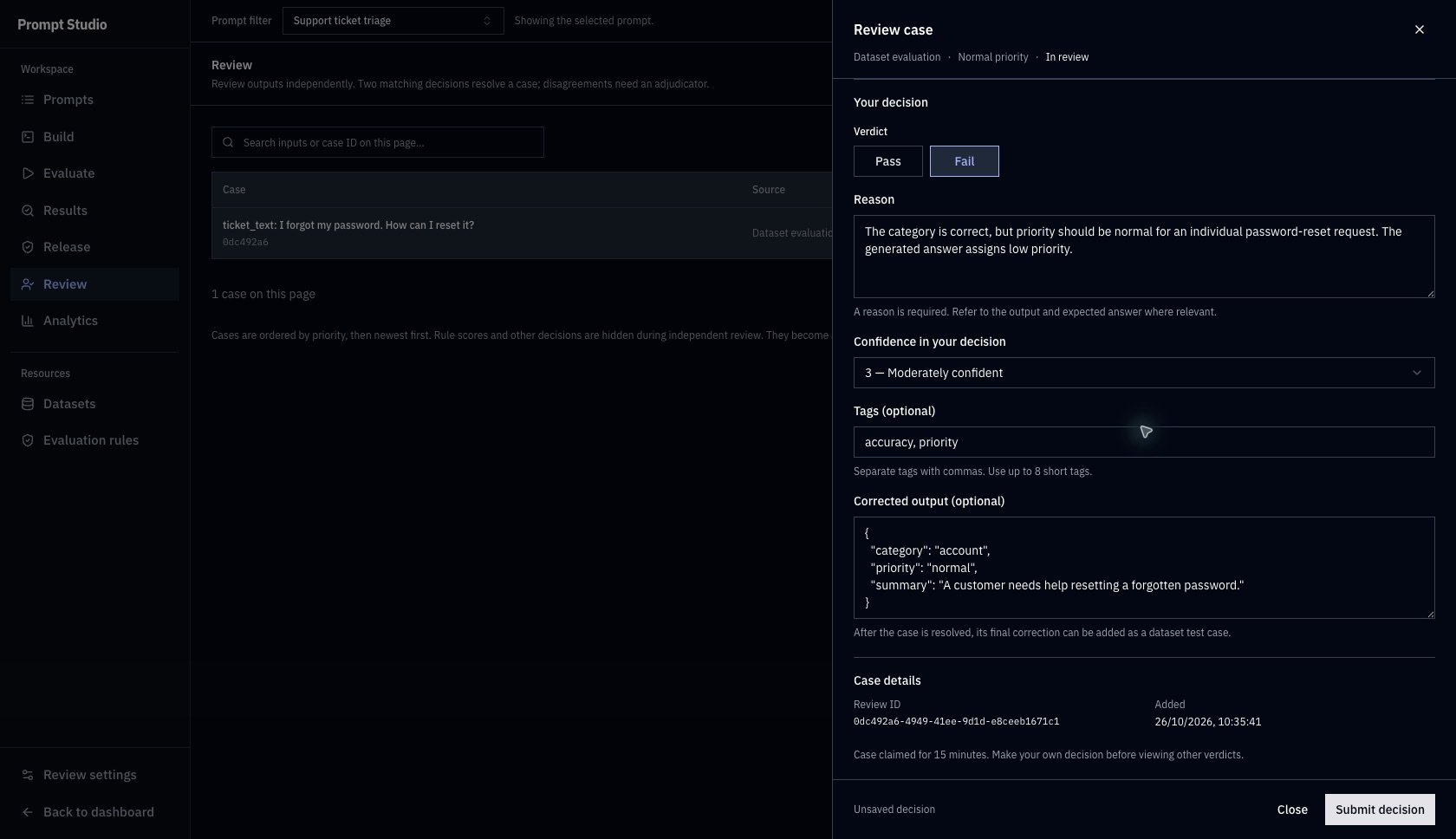
Record your verdict, reason, confidence, and optional correction. Automatic scores remain hidden until you submit.
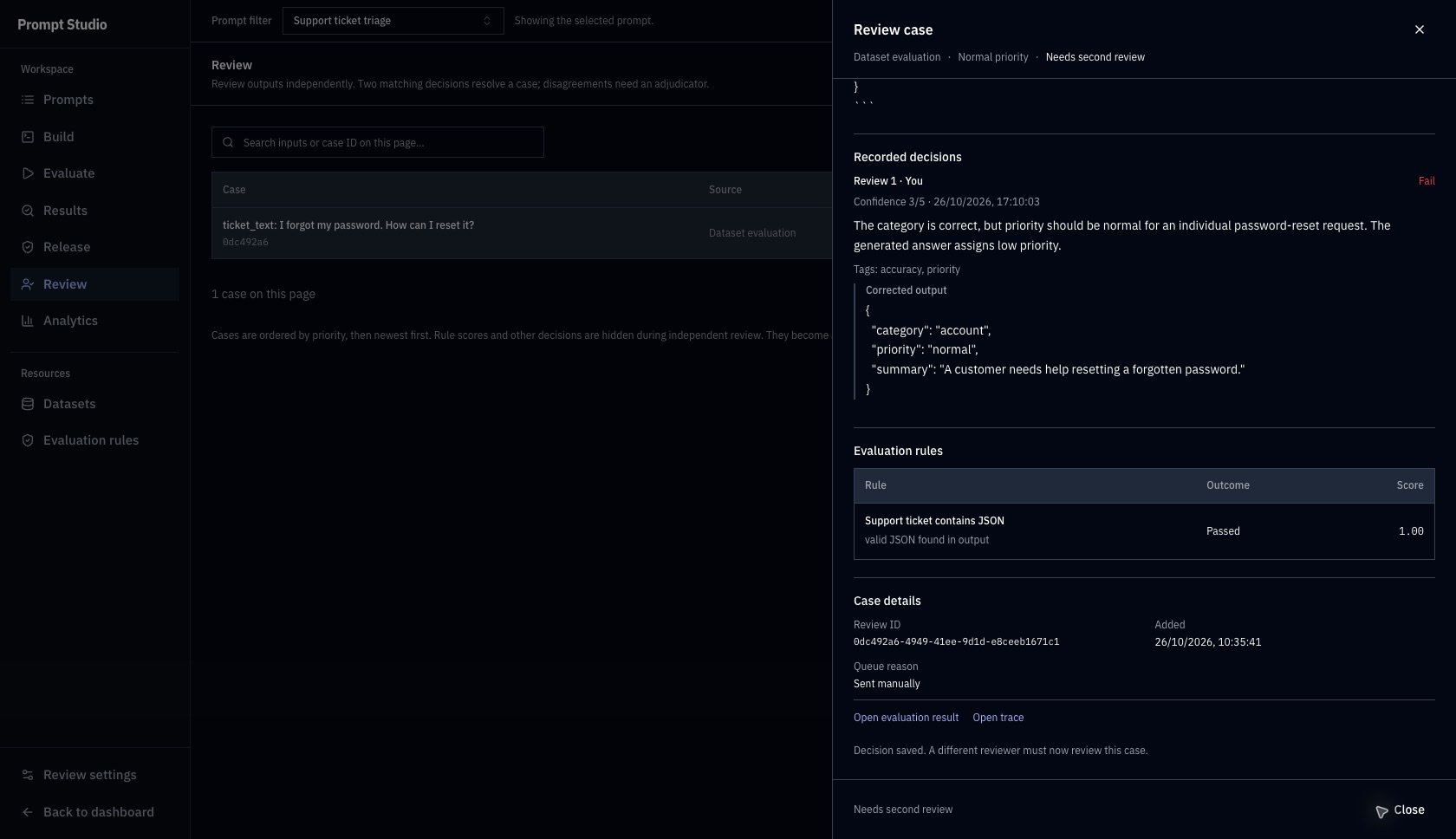
The first decision is saved as Fail while the JSON rule still shows Passed. Needs second review means a different reviewer must decide next.
Complete the second review or adjudicate
A different reviewer opens the same case, clicks Claim case, and submits their own decision. Their panel hides the first decision and automatic scores until they submit.
Corrections are compared as text. Two differently worded answers can require adjudication even if they convey the same meaning. Reviewers do not have to give matching reasons, tags, or confidence values.
For Needs adjudication, an adjudicator, owner, or admin opens the case, compares Recorded decisions, and fills in Final decision. Choose a verdict, reason, and confidence; include the complete final corrected output if you want to reuse it. Click Record final decision to resolve the case.
Resolved means the human review is complete. It can have a final Pass or Fail verdict; it does not mean the original output passed.
Reuse the final correction
Once a case is Resolved and its final decision contains a correction, open Add the final correction to a dataset and click Add test case. This action requires access beyond Review-only access.- A dataset evaluation adds the new case to its source dataset.
- A production review requires you to choose a Dataset with matching variable names and types and fewer than 500 cases.
- The new case uses the reviewed inputs and the final correction as Expected output. Studio saves a new dataset snapshot with a link back to the review decision.
- Existing cases and evaluation snapshots stay unchanged. Repeating this action for the same review does not add another copy.
Adding a correction appends a case; it does not replace an existing reference answer. The sample dataset already has the correct password-reset reference. You can leave this optional step out to keep its original eight cases.
Find the next case
Use the prompt filter to narrow the queue, or All reviews to return to the organization-wide view. Filter by status and source, then open Filters for Claimed by, Minimum priority, and Added to queue. Search cases on this page searches the loaded page’s inputs and case IDs. Use pagination to inspect other pages. Clear filters resets queue filters and search. Select Needs second review to find unfinished pairs, Needs adjudication for disagreements, or Content expired for items whose review content is no longer available. All statuses excludes expired content.Configure review settings
Owners and admins manage these organization-wide controls in Review settings. Click Save settings after changing queue rules or review data. Reviewer access changes save separately and immediately.Automatically queue dataset outputs
Automatically queue dataset outputs
Queue rules can send completed dataset-evaluation outputs for review when a required rule fails, encounters a scoring error, or returns a score near its passing threshold.
- Required rule failures queues outputs that fail a required rule.
- Evaluation errors queues generated outputs whose required rule cannot produce a score. It does not create a reviewable answer for a failed generation.
- Borderline score margin applies to required LLM judge and similarity scores. Use
0to disable it or a value up to0.25. A margin of0.05means ±0.05for similarity or ±0.45on a judge’s 1–10 scale.
Mask review content and set retention
Mask review content and set retention
Redact sensitive information masks common email, phone, credential patterns, and secret variable fields in review content and notes. Pattern matching can miss sensitive content. Additional variables to hide masks the named variables even when automatic redaction is off.Keep content for accepts 7–3,650 days. After retention cleanup, expired review inputs, outputs, notes, and corrections are unavailable. Stored production execution content is also cleared under this setting; recorded verdicts, scores, and costs remain. Expired cases cannot accept new decisions or correction promotion.Reducing retention can remove older content on the next cleanup. Masking a review does not remove the original source data. Check the recorded variables before promoting a correction: hidden or masked values become part of the new dataset case and must still satisfy its schema.
Troubleshooting
Continue with Production quality and analytics to inspect real requests and understand what human-review agreement measures.